|
Image Size
Images are referred to by their size in pixels i.e. the
number of pixels across (width) by the number of pixels
high (height). In the example of the flower above the
image is 2376 pixels wide by 1584 pixels high. When you
select the image in the program its size is reported in
the
Object Manager.
Dots Per Inch (DPI) & Pixels Per Inch (PPI)
Dots per inch (DPI) or dpi is often
confused as an actual measurement of an image on
computer disc which is quite incorrect. As explained
above the size of the image is measured by the number of
pixels across and the number of pixels high. DPI,
however, refers to
the physical world i.e. the number of dots that are actually
printed per inch onto media such as paper or vinyl.
Similarly the term Pixels Per Inch (PPI) or
ppi refers to the number of pixels used to display
an image such as the one above on your computer's monitor.
Therefore when calculating an
image in terms of DPI you need to think of an image's
pixels being
stretched or squashed to fit within a physical size set
by you in the drawing area. So if you wanted the image
of the flower shown above to be printed at say 24"
wide (609.6mm) then you would
need to stretch its 2,376 pixels over 24" which works out to be 99 dots per inch
i.e.
99dpi. A selected image's DPI and rendered size is
reported in the DesignCenter (as shown directly below).
Images
and the DesignCenter
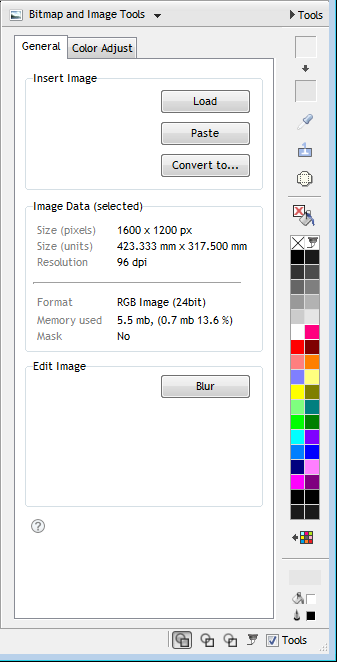
When an image/bitmap is selected a suite of image tools will
appear under Bitmap and Image tools in the DesignCenter, as shown above,
with most of the tools outlined in the topics on
images/bitmaps available in the DesignCenter. The advantage of the DesignCenter is
that you can leave it open to access the image/bitmap tools whenever you
require them, also see
DesignCenter
|


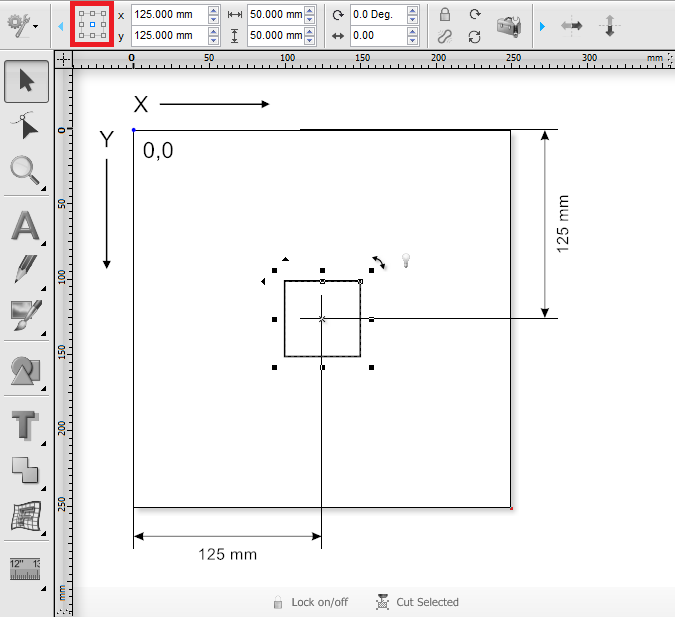

 to position the object visually in the drawing (see
above).
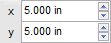
to position the object visually in the drawing (see
above).