Working with Text
On This Page
•
Set Horizontal Text to Vertical Text from Text-Mode
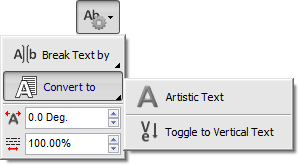
Set Horizontal Text to Vertical Text from Convert to (text)
Set Vertical Text to Horizontal Text (Toggle)
Horizontal Text to Vertical (Toggle)
Advanced Text Flyout
How to Set Horizontal Text to Vertical and Toggle Back to Horizontal
To
Do the following
Toggling the text to vertical is ideal for Arc and Path text.
Related Topics
DesignCenter Types of Text Adding Text Selecting Fonts and Setting Text Size Breaking (Splitting) Text Converting Text Types Vertical Text Explained Add Vertical Text


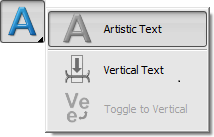


 and the text will become vertical (in
orientation) but not convert into
Vertical Text mode.
and the text will become vertical (in
orientation) but not convert into
Vertical Text mode.


